How to stay safe on public Wi-Fi is one of the most useful habits you can learn in 2026. Coffee shops, airports, hotels, coworking spaces, and train stations all offer convenient internet access, but convenience can come with risk. A public network may be perfectly legitimate, yet it can still expose your data if you log in carelessly, click the wrong link, or ignore simple warning signs.
The good news is that you do not need advanced technical skills to protect yourself. A few smart habits — checking the network name, using encrypted websites, turning off risky sharing settings, and avoiding sensitive logins — can make a big difference. This guide explains those steps in plain language, with real-world examples and practical advice you can actually use the next time you connect outside your home.
Quick answer: Use public Wi-Fi only for low-risk browsing, verify the hotspot name with staff, prefer HTTPS sites, avoid banking on open networks, keep your device updated, and use a trusted VPN when appropriate.
Why public Wi-Fi deserves extra caution
Public Wi-Fi is popular because it is easy to access. But easy access is exactly why it attracts scammers and opportunistic attackers. If you connect to the wrong network, fail to notice a fake hotspot, or open a login page that is not encrypted, your information can be exposed to people on the same network. The FTC explains that users should look for secure sites with a lock symbol or “https” before entering personal information, and it also advises against staying permanently signed in to accounts. FTC public Wi-Fi safety guidance.
That advice still matters in 2026 because the core risks have not changed: attackers want passwords, payment information, and session access. Even when the network itself seems normal, a malicious hotspot or an unsecured connection can create the opening they need.
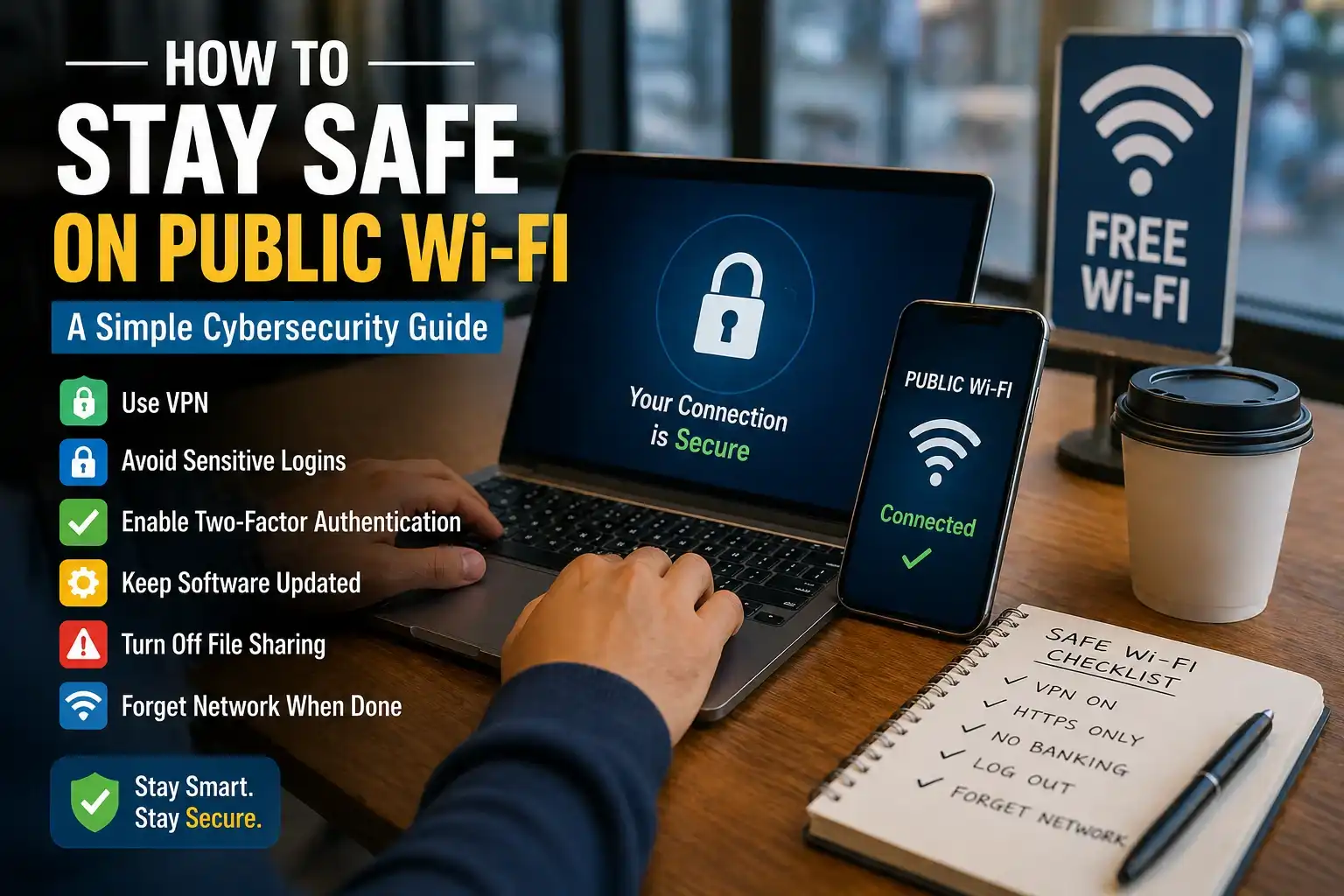
A simple 8-step checklist to stay safe on public Wi-Fi
1. Confirm the exact network name before connecting
Fake hotspots often use names that look close to the real one. A café network named ‘Coffee_Free_WiFi’ may not belong to the café at all. Ask staff for the exact network name and password. CISA’s wireless security guidance recommends confirming the name and password of a public hotspot before use.
Helpful source: CISA wireless network guidance
2. Avoid banking and sensitive logins on open networks
A public network is not the best place to check your bank balance, pay bills, reset passwords, or sign into work systems. If you must do something important, switch to mobile data or wait until you are on a trusted connection. The FTC says to log in or enter personal information only on secure, encrypted sites.
Helpful source: FTC guidance
3. Look for HTTPS and the lock icon
Before entering a password or card number, check that the website uses HTTPS. The lock icon does not guarantee perfection, but it does show the connection is encrypted. That is a basic protection many people ignore when they are rushing through airports or hotels.
4. Turn off auto-connect, Bluetooth sharing, and file sharing
Devices that automatically join nearby networks or keep sharing features active are easier to trick. If you are traveling, disable auto-connect to unknown networks, turn off Bluetooth when you do not need it, and stop file-sharing features that are not required. Small settings changes can reduce risk quickly.
5. Use a trusted VPN when you need extra privacy
A VPN can add another layer of encryption on top of public Wi-Fi traffic, which is useful when you are working remotely or accessing non-sensitive services in a public place. A VPN is not a magic shield, but it can make casual interception harder. Use reputable software and keep it updated.
6. Keep your device and apps updated
Outdated software is one of the easiest ways to get compromised. Updates often fix security flaws that attackers try to exploit. If you are traveling, install important updates before you leave so your phone or laptop is not running old, vulnerable software when you connect in public.
7. Watch for fake sign-in pages and pop-ups
Some public networks try to show fake login forms or aggressive pop-ups asking you to re-enter credentials. If a page suddenly demands more data than expected, close it and reconnect only after verifying the hotspot. Never enter passwords into a page that looks off, even if it resembles the real service.
8. Log out when you are finished
Staying signed in is convenient, but it increases the chance that someone can misuse an open session if your device is lost or a web session is hijacked. Always log out of important accounts after use, especially on shared or public devices.
Real-life examples you may run into
Imagine you are at an airport, and the Wi-Fi list shows two networks that look almost identical. One is the official hotspot from the terminal, and the other is a fake network created to lure travelers. If you connect to the wrong one and then sign in to email or cloud storage, the attacker may not need to break your password at all — they may simply capture what you type.
Another common case happens in cafés or hotels. The network itself may be real, but the page you open might not be encrypted or the app you are using might not handle security properly. That is why a public network should be treated as a low-trust environment, not a place for your most sensitive tasks.
The same habit that helps you verify a suspicious story before sharing it also helps here: pause, check the source, and do not trust the first thing that looks official. If you write about safety topics often, you may also find our article on Cybersecurity in 2026: How to Protect Your Personal Data useful because it covers the wider habits that protect everyday users online.
Common mistakes to avoid
Do not assume a network is safe just because it appears in a busy public place. Do not enter passwords because a site looks familiar. Do not leave important accounts open while you step away from your laptop. And do not rely on a single security tool while ignoring basic habits. Good security is a set of small choices, not one product.
If you are looking for more practical digital-safety advice, our guide on How to Protect your Phone From Scam Calls, Fake OTPs, and Online Fraud in 2026 fits well alongside this article because many public Wi-Fi risks overlap with mobile fraud and phishing attempts.
A 60-second public Wi-Fi routine
Here is a simple routine you can use every time you connect in a public place: first, confirm the network name with staff or signage; second, check that your device is not auto-joining unknown networks; third, keep Bluetooth and file-sharing off unless needed; fourth, use only HTTPS sites for logins; fifth, avoid banking and sensitive work; and sixth, log out before you leave.
If you want to make the routine even stronger, keep your passwords unique, use two-factor authentication on important accounts, and update your phone or laptop before travel. This routine may feel repetitive, but repetition is exactly what makes it reliable.
How this fits the latestnewss.com content cluster
This topic belongs naturally on latestnewss.com because the site already publishes useful guide-style articles around practical everyday safety. For example, the page How We Verify News Before Publishing reinforces the same verification mindset, while How to Build an Emergency Fund in 2026 and How to Create a Monthly Budget That Actually Works in 2026 show that readers on the site respond well to practical, step-by-step content.
You can also connect this article to your broader technology content by referencing Cybersecurity in 2026: How to Protect Your Personal Data. That keeps the internal linking natural and helps readers move from one useful guide to another without feeling forced.
Why this article works for AdSense and Google Discover
This article is a strong fit for AdSense review because it is original, practical, and clearly written for readers. It is also evergreen, so it should remain relevant beyond a single news cycle. Google’s Search Essentials recommend helpful, reliable, people-first content and clear linking, which this article is built to support. Google Search Essentials.
For Discover, a piece like this works because it gives immediate value, has a strong everyday use case, and reads like something a real person would want to save for later. The combination of a clear title, useful steps, examples, and FAQs makes it easy to scan on mobile, which is where many Discover readers will see it.
Frequently asked questions
Is public Wi-Fi always dangerous?
No. Public Wi-Fi is not automatically unsafe, but it should be treated carefully. The safest approach is to use it for light browsing and avoid sensitive tasks unless you are on a trusted, encrypted connection.
Should I use a VPN on public Wi-Fi?
A trusted VPN can add privacy and make casual interception harder, especially when you are traveling or working remotely. It is helpful, but it does not replace careful habits like checking HTTPS and avoiding suspicious login pages.
Can I do online banking on public Wi-Fi?
It is better to avoid it. If the transaction is important, use mobile data or wait until you are on a secure private network.
How do I know a public hotspot is real?
Ask the staff or venue for the exact network name and password. Do not connect to look-alike networks just because they appear first or sound similar.
What is the fastest safety habit I can start today?
Turn off auto-connect for unknown Wi-Fi networks and stop staying signed in to important accounts. Those two small changes remove a lot of risk.
Conclusion
Learning how to stay safe on public Wi-Fi in 2026 is really about building a calm routine. Verify the network, prefer encrypted sites, avoid sensitive tasks in public, keep your device updated, and log out when you are done. These habits are simple, but they protect the things that matter most: your accounts, your money, and your personal data.

Shiva S writes about AI, cybersecurity, online safety, Google Discover, and digital trends. His focus is creating practical, easy-to-understand guides that help readers stay informed and safer online.