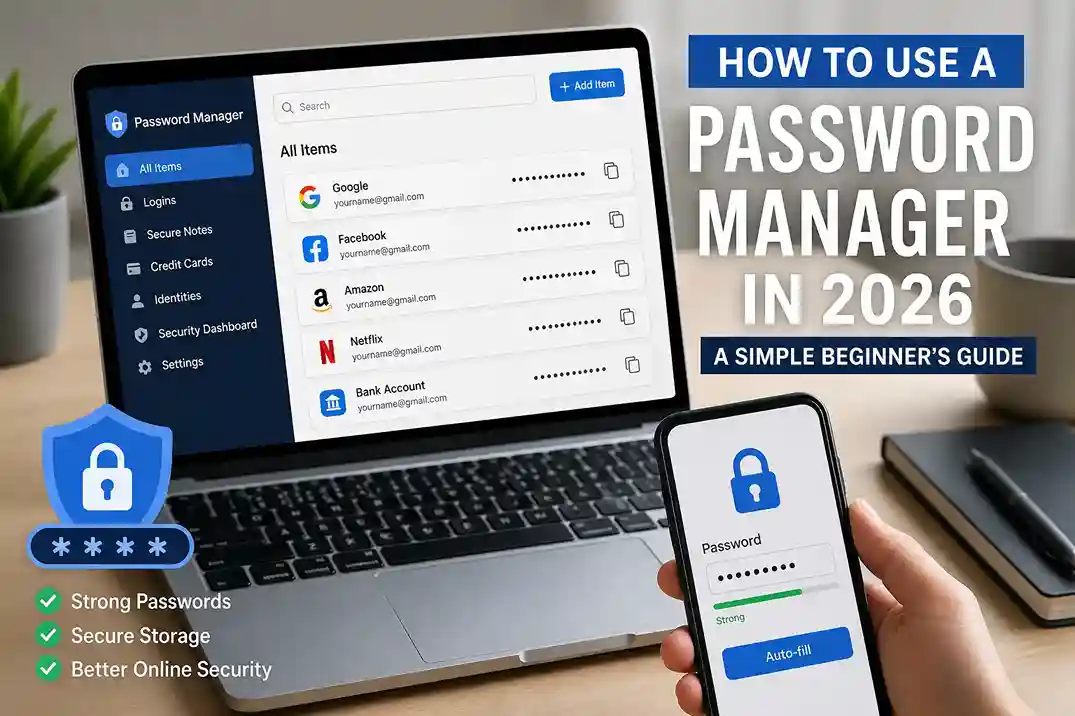
If you still reuse the same password on a few different accounts, a password manager can change your day-to-day security quickly. It helps you create strong, unique passwords, remember them for you, and fill them in when you need them. That matters because one leaked password can become a chain reaction across email, shopping, banking, social media, and work accounts.
Google says Password Manager can suggest strong, unique passwords, save them in your Google Account, warn you about compromised passwords, and store passwords and passkeys behind built-in encryption. The FTC also recommends using a password manager to create strong passwords and to keep them protected like any other sensitive credential, while CISA says a password manager lets you remember just one strong password for the manager itself. Google Password Manager help, FTC password guidance, and CISA strong passwords guide.
This guide explains how to use a password manager in 2026 in a beginner-friendly way: what it does, how to set it up, how to store passwords safely, what mistakes to avoid, and how it fits into the site’s broader safety content.
Quick answer: Choose a trusted password manager, protect it with one long master password and two-factor authentication, save your existing logins, and let it create unique passwords for every important account.
Why a password manager matters
The biggest password problem is not that people are careless; it is that passwords are hard to manage at scale. Most people have dozens of accounts and more sign-ins keep appearing every year. When a password has to be remembered from memory, people often reuse it, simplify it, or write it somewhere unsafe. That creates risk.
A password manager solves that problem by doing two jobs at once. First, it generates strong passwords that are hard to guess. Second, it stores them so you do not need to memorize every login. That means you can use a different password for every account without depending on sticky notes, repeat patterns, or tiny variations that are easy to break.
How a password manager works
At a simple level, a password manager stores your logins inside an encrypted vault. You unlock that vault with one master password or another secure sign-in method such as biometrics or a device lock. Once you are inside, the manager can fill passwords automatically on sites and apps that you trust.
Many managers also include extras like password generation, breach alerts, secure notes, and passkey support. Google’s own password manager support pages say it can help you save passwords and passkeys across devices and check for compromised passwords. That makes it more than a memory tool; it becomes a control center for account security. Google Password Manager on Android.
How to choose a password manager
The best password manager is the one you will actually use consistently. Look for a trusted brand, cross-device syncing, a strong encryption model, easy autofill, and a clean recovery process. If the app is confusing, people stop using it. If it is too limited, they fall back to bad habits.
For beginners, a built-in option can be enough. Google Password Manager works well for people who already use Chrome or Android and want a simpler path. If you want extra features or a multi-platform setup, a third-party manager can also be a good choice. The FTC suggests choosing a reputable manager and protecting its own master password carefully.
If you are also improving your career and work accounts, this matters even more. A better protected email address, login portal, and cloud storage account can prevent problems later when you are using articles like How to Verify a Company Before Applying for a Job in 2026: A Beginner’s Guide and How to Spot Job Scams and Fake Recruiter Messages in 2026: A Beginner’s Guide.
How to set up a password manager step by step
1. Pick one password manager and commit to it. Stopping halfway between two tools usually creates confusion and duplicate logins.
2. Create one strong master password that you have never used anywhere else. This is the only password you should need to remember by heart.
3. Turn on two-factor authentication for the manager itself if it supports it. That protects the vault if someone learns the master password.
4. Import or add your existing logins one by one, starting with email, banking, cloud storage, and social accounts.
5. Let the manager generate new passwords for weak or reused accounts as you log in and update them.
6. Save recovery codes in a safe place, because a password manager should make access easier without making recovery fragile.
This setup process does not need to happen all at once. A good approach is to start with your most important accounts and then work through the rest over a few days. That is safer and easier than trying to migrate everything in one sitting.
Real-life examples of why it helps
Imagine you use the same password for email, shopping, and a streaming app. If one of those services is breached, a scammer may try that same password on your email first, because email is the key to password resets. A password manager breaks that chain by giving each account a different password.
Now imagine you need to sign in on a new laptop while traveling. Instead of hunting through notes or guessing a password pattern, you open your password manager and sign in safely. That is especially useful in practical situations covered by the site’s other security articles, including How to Stay Safe on Public Wi-Fi in 2026: A Simple Cybersecurity Guide and How to Protect your Phone From Scam Calls, Fake OTPs, and Online Fraud in 2026.
Another example is account recovery. If you save a long, unique password for a job site, a bank portal, or your cloud drive, you do not have to choose between weak memory-based passwords and unsafe reuse. The manager carries the complexity for you.
Common mistakes to avoid
The biggest mistake is making the password manager itself too easy to enter. If the master password is short or reused, the vault becomes weaker. Make the master password long and memorable, not predictable.
Another common mistake is skipping two-factor authentication on the manager and on important accounts. A password manager is strong, but it should still sit inside a wider security habit. That is why the site’s 2FA article pairs naturally with this topic. How to Set Up Two-Factor Authentication in 2026: The Ultimate Beginner’s Guide to Secure Your Accounts.
A third mistake is copying every old password into the vault and never improving them. The point is not just storage. The point is to replace reused or weak passwords with unique ones over time. Google and CISA both emphasize strong, unique passwords because reused credentials are one of the easiest ways one breach becomes many.
Best habits for using a password manager well
Use the manager on every device where you sign in regularly, but keep your phone and laptop locked with a screen lock or biometric protection. Review saved passwords occasionally and delete old accounts you no longer use. If the manager offers breach alerts, pay attention to them instead of ignoring the notices.
It also helps to combine the manager with the site’s other practical safety guides. If a message looks suspicious, read How to Spot Phishing Emails and Scam Links in 2026: A Simple Beginner’s Guide before you click. If a recruiter or company looks uncertain, read How to Verify a Company Before Applying for a Job in 2026: A Beginner’s Guide before you share account details. The password manager is one layer; good judgment is the other.
If you want to be more organized overall, it can also support your everyday finances by securing banking logins used in practical guides such as How to Save Money Fast in 2026: Simple Money-Saving Tips for Beginners and How to Create a Monthly Budget That Actually Works in 2026.
Why this article works for AdSense and Google Discover
This article is a strong AdSense fit because it is original, evergreen, and useful. It teaches a practical skill that many readers genuinely need, and it does not depend on a short-lived news event. Google’s helpful-content guidance and Search Essentials reward material that is written for people first, which is exactly the goal here. Google Search Essentials.
It also works well for Google Discover because the topic is broad, useful, and easy to understand quickly on mobile. Clear headings, short paragraphs, real examples, and a strong visual can make the article feel approachable and trustworthy.
Frequently asked questions
What is the easiest way to start using a password manager?
Pick one trusted password manager, create one strong master password, turn on two-factor authentication, and start with your email account first.
Is Google Password Manager enough for beginners?
For many beginners, yes. It can suggest strong passwords, save them in your Google Account, and warn about compromised passwords, which makes it a practical starting point.
Should I still remember my passwords if I use a manager?
You should remember your master password, but the manager handles the rest. That is the main benefit: one strong password instead of many weak ones.
Can I use a password manager on phone and laptop?
Yes. Most managers sync across devices so you can sign in on desktop and mobile without typing long passwords from memory every time.
Is it safe to keep banking passwords in a password manager?
For a reputable password manager, yes, as long as you protect the master password and use device security and two-factor authentication.
What should I do if the password manager says a password is compromised?
Change that password immediately and replace it with a unique one. If the same password was reused elsewhere, update those accounts too.
Do password managers replace two-factor authentication?
No. They work best together. A password manager protects your passwords, and 2FA adds another step if someone gets through the first layer.
Conclusion
Learning how to use a password manager in 2026 is really about making good security easier to keep up with. Instead of trying to remember dozens of passwords or reusing the same one everywhere, you let the manager handle the hard part and keep your accounts organized.

Shiva S writes about AI, cybersecurity, online safety, Google Discover, and digital trends. His focus is creating practical, easy-to-understand guides that help readers stay informed and safer online.