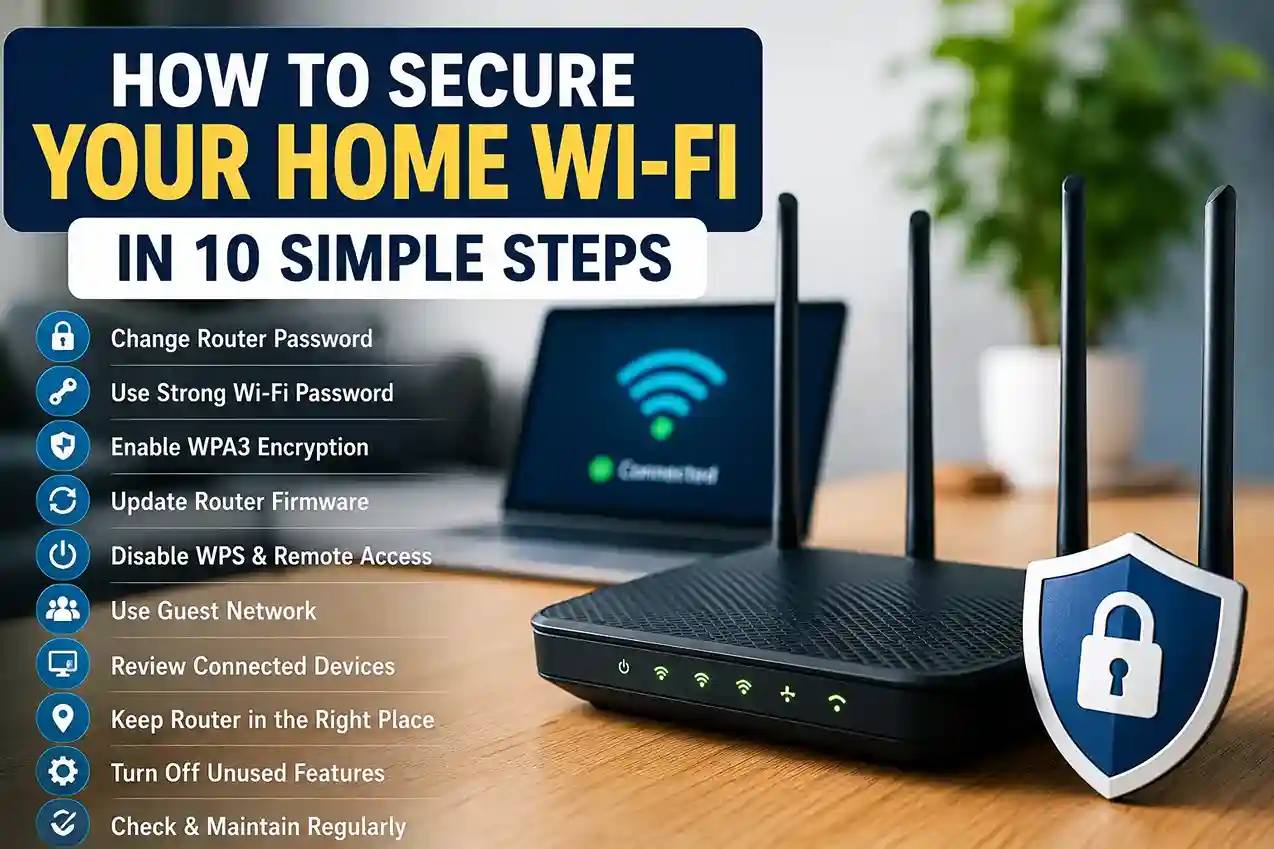
How to Secure Your Home Wi-Fi in 10 Simple Steps is one of the most useful security upgrades you can make without buying new gear. Your router is the front door to everything connected in your house, and the FTC describes it as the home base for your devices. Start there, and you immediately reduce the risk to laptops, phones, printers, smart TVs, and cameras. A good place to pair this habit with is How to Create a Personal Cybersecurity Checklist in 2026, because Wi-Fi security works best when it is part of a broader routine, not a one-time fix.
If you already care about strong passwords, privacy, and scam awareness, you are halfway there. Posts like How to Create Strong Passwords People Actually Remember in 2026 and How to Strengthen Your Digital Privacy Habits in 2026 fit naturally with home Wi-Fi security because the same basic idea applies: remove easy openings before someone else finds them.
How to Secure Your Home Wi-Fi in 10 Simple Steps
1) Change the default router login details
This is the first step for a reason. Many routers ship with default administrative usernames and passwords, and the FTC recommends changing the default administrative username, password, and network name to something unique. If you have never logged into your router settings, now is the time.
A strong router password should not be reused from another account. If that sounds familiar, the same logic you use for online accounts applies here, which is why How to Create Strong Passwords People Actually Remember in 2026 is a helpful companion read. The goal is to make the router harder to guess, not merely harder to remember on paper.
2) Use a strong Wi-Fi password
Your Wi-Fi password should be long, unique, and not based on family names, birthdays, or your address. The FTC and other security guidance consistently emphasize unique credentials because reused or predictable passwords are easy targets. A password manager can help generate and store a long passphrase so you do not end up writing it on a sticky note.
In real-world situations, this matters more than most people expect. A guest, a contractor, or even someone standing outside your home can sometimes guess weak Wi-Fi names and passwords far faster than homeowners realize. That is why a strong Wi-Fi password is not just a technical detail; it is a basic household safeguard.
3) Turn on the strongest encryption your router supports
Encryption scrambles the traffic on your network so it is much harder for outsiders to read. CISA recommends WPA3 Personal AES where available, and the FTC also advises enabling encryption in your router settings. If your router does not support WPA3, use the strongest option it does support.
This is one of those settings that works silently in the background once it is on, which is exactly what you want from a security control. If you are also thinking about connected cameras, speakers, or other smart devices, Smart Home Security in 2026: Affordable Devices That Actually Protect Your Home is a useful follow-up because those devices rely on the same wireless network.
4) Update your router firmware
Router updates are easy to ignore because they do not feel urgent, but they matter. The FTC advises checking for hardware and software updates, and CISA also includes updates as part of basic home network security hygiene. If your router supports automatic updates, turn them on. If not, set a reminder to check manually.
In practice, old firmware can leave known weaknesses sitting open for months or years. That is why a simple monthly review is better than waiting until something breaks. Pair this habit with How to Protect Your Email Account From Hackers 2026, since routers and email accounts are both common starting points for bigger security problems.
5) Disable WPS, remote management, and UPnP if you do not need them
The FTC specifically recommends turning off remote management, Wi-Fi Protected Setup (WPS), and Universal Plug and Play (UPnP) because they can weaken security even when they are convenient. These features are often left on by default, which means many people never realize they are exposed.
A good rule is simple: if you do not know why a setting is enabled, and you do not actively need it, turn it off after checking your router’s documentation. This is one of the fastest ways to reduce unnecessary risk without affecting day-to-day use.
6) Rename your Wi-Fi network and avoid personal details
Your SSID, or Wi-Fi network name, should not give away your address, your family name, or your router brand. The FTC recommends changing the default network name to something unique, and that advice is more than cosmetic. A generic or personalized network name can make your setup easier to identify.
This is also a good moment to review the rest of your digital footprint. If your network name, profiles, and public accounts all reveal the same personal details, it becomes easier for attackers or scammers to connect the dots. How to Delete Your Personal Information From the Internet in 2026 fits well here because privacy hygiene and Wi-Fi security reinforce each other.
7) Place your router in a central location
The FCC says router placement can affect coverage, and a central location usually helps you get a stronger signal where you actually need it. A better location can reduce dead zones and make you less tempted to use unnecessary extenders or awkward workarounds.
In real-world situations, a central shelf or open space often performs better than a router shoved behind a TV, inside a cabinet, or next to thick walls and appliances. Small placement changes can improve both performance and convenience without changing any settings.
8) Create a guest network for visitors and less trusted devices
A guest network is useful when you want to keep visitors, smart home gadgets, or less trusted devices away from your main devices. While the exact setup varies by router, the idea is to separate traffic so everything is not sitting on one shared network. This is a practical way to reduce exposure if a device is compromised.
This step is especially helpful if your home includes smart speakers, cameras, plugs, or other connected devices. The more devices you add, the more valuable isolation becomes. That is one reason How to Strengthen Your Digital Privacy Habits in 2026 and How to Create a Family Online Safety Plan in 2026 make good companion reads for households that want simple but lasting protections.
9) Review connected devices regularly
Check your router or network app to see what is connected. Remove devices you no longer use, and make a habit of noticing anything unfamiliar. The FTC and CISA both emphasize keeping an eye on the network itself because the router is the hub for everything else in the house.
If you also use phones, laptops, cameras, or smart home devices, this is a good moment to make sure each one is updated and secured. How to Spot Phishing Emails and Scam Links in 2026: A Simple Beginner’s Guide is a useful next step because phishing often leads to stolen credentials, and stolen credentials often lead to unwanted devices on your network.
10) Revisit your setup once a month
The strongest home Wi-Fi setup is the one you maintain. A monthly check does not need to take long: confirm updates are current, review connected devices, make sure your password is still strong, and verify that security settings have not changed after a reset or service visit. That kind of routine matches the broader advice in FTC and CISA guidance, which both stress ongoing maintenance rather than a one-time fix.
A simple checklist works well here, especially if you like keeping security tasks organized. How to Create a Personal Cybersecurity Checklist in 2026 pairs perfectly with this habit because home Wi-Fi security is easier to maintain when it is written down.
Common mistakes people make
One of the biggest mistakes is leaving default settings in place because “the internet still works.” That is not the same as being secure. The FTC specifically warns against keeping default router credentials, leaving remote management on, or relying on convenience features like WPS and UPnP when they are not needed.
Another common mistake is assuming that a hidden network name is the same as a secure network. CISA notes that SSID protection can make a network harder to find, but hiding the name does not replace real security settings like strong encryption, strong passwords, and software updates.
FAQ
Is WPA3 always available?
Not always. Some older routers only support WPA2 or older settings. Use the strongest encryption your router supports, and upgrade the router if it is too old to secure properly. CISA recommends WPA3 Personal AES where available.
Does changing the Wi-Fi name really matter?
Yes, but mostly as a supporting step. A unique name helps avoid exposing personal details or obvious default branding, but it should be paired with a strong password and encryption.
How often should I update my router?
At least whenever the manufacturer releases an update, and ideally with automatic updates enabled if your model supports them. The FTC recommends checking for hardware and software updates as part of routine router care.
Do I need a guest network?
If your router supports it, a guest network is a smart way to separate visitors and less trusted devices from your main devices. It is especially helpful in homes with smart speakers, cameras, and other connected products.
Conclusion
How to Secure Your Home Wi-Fi in 10 Simple Steps comes down to a few practical habits: change the defaults, strengthen passwords, use encryption, update firmware, disable risky features, place the router well, separate devices when possible, and check the setup regularly. Those steps are simple, but they close the openings that attackers look for first. The FTC, CISA, and FCC all point in the same direction: home network security is built from basic settings done well and maintained over time.
For readers building a wider safety routine, How to Create a Personal Cybersecurity Checklist in 2026, How to Strengthen Your Digital Privacy Habits in 2026, and Smart Home Security in 2026: Affordable Devices That Actually Protect Your Home are natural next reads. The more your Wi-Fi, devices, passwords, and privacy habits work together, the safer your home network becomes.

Shiva S writes about AI, cybersecurity, online safety, Google Discover, and digital trends. His focus is creating practical, easy-to-understand guides that help readers stay informed and safer online.