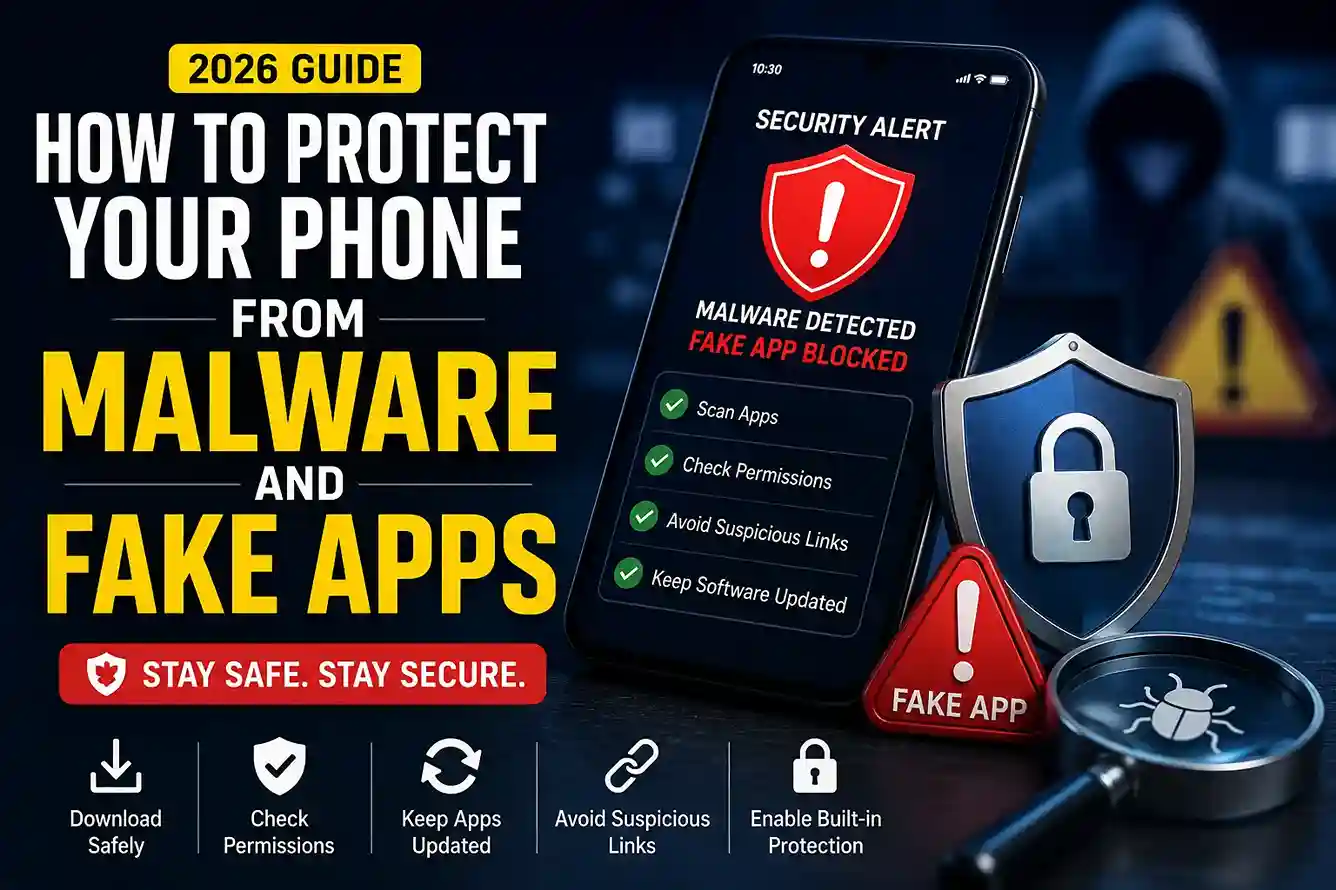
How to protect your phone from malware and fake apps in 2026 is one of the most practical digital safety skills a person can learn right now. Phones are no longer just for calls and messages. They hold banking apps, work logins, photos, two-factor codes, shopping accounts, health data, and private conversations. That makes them attractive targets for criminals. Google says its Play Protect system scans apps and devices for harmful behavior, while the FTC continues to warn consumers about scam messages and phishing attempts that try to push people into opening unsafe links, sharing credentials, or installing something they should not trust.
The good news is that most phone malware and fake app scams are preventable if you know what to look for. Readers who already follow habits from How to Create a Personal Cybersecurity Checklist in 2026 and How to Protect Your Email Account From Hackers in 2026 usually have an easier time spotting trouble early, because the same discipline that protects an inbox also helps protect a phone. In many real-world situations, the difference between a safe phone and a compromised one is not a technical mystery. It is a small habit repeated consistently.
How to protect your phone from malware and fake apps in 2026
The simplest way to think about phone protection is this: do not install what you do not trust, do not click what you did not expect, and do not give an app more access than it truly needs. That sounds basic, but it is exactly where many infections begin. Google Play Protect checks apps when they are installed and also scans devices periodically, which helps catch harmful or unsafe apps after the fact. Google also says that if a harmful app is detected, it may warn you, disable the app, or remove it automatically.
A fake app does not always look fake. It may copy the name, color scheme, or icon of a popular service. It may pretend to be a cleaner, scanner, QR reader, battery saver, game, coupon app, or streaming tool. The goal is usually the same: get installed, gain permissions, and then harvest data, display ads, redirect traffic, or install more malicious software. That is why How to Spot Fake Shopping Websites Before You Buy Anything in 2026 and How to Spot Phishing Emails and Scam Links in 2026 fit naturally with phone security. The attacks often start online long before they reach the device itself.
1. Download apps only from trusted sources
The safest first step is to stick to official app stores and developer pages whenever possible. That does not make every app perfect, but it does lower the risk compared with random download sites, direct APK files, or links sent in messages. Google’s Play Protect guidance exists precisely because harmful or unsafe apps can still show up and need to be detected, flagged, or removed.
In real-world situations, the scam often begins with curiosity: a “free premium app,” a “faster video player,” a “must-have cleaner,” or a “special update” someone says you need immediately. If an app is not easy to verify, do not treat it as harmless just because it is popular in a chat group.
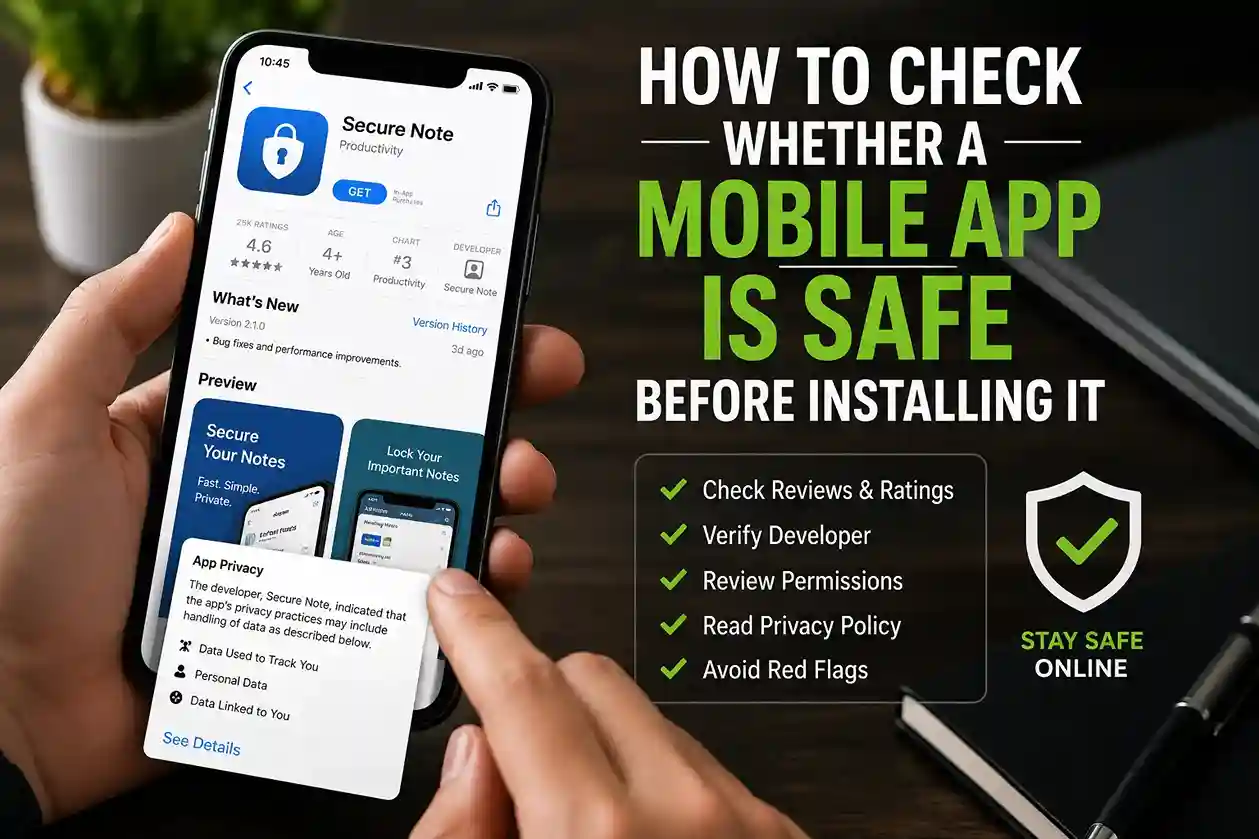
2. Check the app name, developer, and reviews carefully
Fake apps often borrow the reputation of real ones. The logo may be similar, but the developer name may be slightly wrong, the description may be vague, and the reviews may sound robotic or repeated. A real app usually has a consistent identity across its name, developer profile, update history, and support links.
If an app is trying to look official but the spelling is off, the support contact is empty, or the ratings seem oddly staged, take that as a warning sign. This is the same verification mindset that helps with broader privacy habits, which is why How to Strengthen Your Digital Privacy Habits in 2026 is a useful companion guide. Good privacy habits make it harder for a fake app to get the information it wants after installation.
3. Pay close attention to permissions
A flashlight app does not need access to your contacts. A simple calculator does not need your camera. A fake app often asks for more access than it should because it wants to collect data or expand its control. On Android, Google says Play Protect can also help with harmful apps and unknown apps, which makes permission checks even more important because prevention and detection work together.
A practical rule is to ask one question before tapping “Allow”: does this permission make sense for what the app actually does? If the answer is no, stop there. Many people ignore this step because the app is offering a useful feature, but that is exactly the moment when risk matters most.
4. Turn on built-in security tools
Most modern phones already include important protection features. Google says Android security uses built-in defenses to help protect against bad apps, malware, phishing, and spam, and Google Play Protect scans apps and devices for harmful behavior. Google also notes that Android security tools can help protect against harmful or unsafe apps, including apps from outside the main store.
That means phone protection is not only about fear avoidance. It is also about making sure the security features your device already provides are turned on and left active. If a setting can warn you before an app causes harm, let it do its job.
5. Keep your phone and apps updated
Updates matter because attackers rely on known weaknesses. CISA’s home network security guidance recommends automatic updates and also says computers and mobile devices on your network should run antivirus software where appropriate. Google similarly emphasizes that Android updates improve protection and security.
A lot of people delay updates because they are inconvenient. In practice, that delay creates a window where a known weakness stays open longer than it should. If you want phone safety to feel manageable instead of stressful, treat updates as routine maintenance, not an optional task.
6. Avoid suspicious links, attachments, and pop-ups
Fake apps are often only one step in a broader scam. The link that pushes you toward the app can arrive through SMS, email, social media, or a browser pop-up. The FTC has repeatedly warned about phishing-style messages that ask people to click, log in, or open something unexpected. CISA also warns that phishing uses harmful links, emails, or attachments to trick people into exposing information or installing malicious content.
This is where How to Spot Online Scams Before It Is Too Late in 2026 becomes especially relevant. A phone infection rarely starts as “install malware.” It usually starts as “tap here,” “confirm now,” or “your app is out of date.”
Warning signs that an app may be fake or harmful
Some fake apps are easy to catch, while others are not. The following signs deserve extra caution:
A suspicious app may have too many permissions for the job it performs. It may copy a real brand but use a slightly odd developer name. It may have poor spelling, generic screenshots, or reviews that all sound similar. It may push aggressive pop-ups, force constant notifications, or ask you to pay for features that should not require such access. If an app wants you to disable protection features, install updates from outside the official store, or ignore safety warnings, that is another strong red flag. Google says Play Protect may warn users about unsafe apps and can even block or remove harmful ones, which is useful because the warning is there for a reason.
Another thing to watch is emotional pressure. A fake app may claim your phone is infected, your storage is full, your battery is dying, or your account will be locked unless you act immediately. That style of pressure is the same tactic used in many other online scams. If the message feels rushed, it deserves more skepticism, not less.
Common mistakes people make with phone security
One of the biggest mistakes is assuming the app store itself is a guarantee of safety. Stores are safer than random downloads, but they are not magical filters that block every harmful app instantly. Another common mistake is approving permissions without reading them because the app looks useful. People also ignore update reminders, leave security tools disabled, or keep apps they barely use because “nothing has happened yet.”
A second mistake is mixing phone security with general convenience. For example, someone may keep a private banking app on the same phone as a game or entertainment app they installed from an unknown source. That does not mean disaster is inevitable, but it does raise the stakes. If you are building stronger overall habits, How to Delete Your Personal Information From the Internet in 2026 is useful because less exposed information means less usable data if a bad app does get in.
A third mistake is ignoring the device as a whole. A weak phone security setup can undermine other habits, even if you are careful elsewhere. That is one reason How to Create a Family Online Safety Plan in 2026 is so helpful. In many households, one unsafe device becomes the weak link that affects everyone.
Best practices that make malware much harder to spread
The most effective routine is a simple one. Use a strong screen lock. Keep app installs limited to trusted sources. Review permissions regularly. Turn on Play Protect or your phone’s equivalent built-in protection. Keep software updated. Delete apps you no longer use. And be skeptical of anything that asks you to hurry.
If you use multiple devices, connect this habit to your broader account security. How to Protect Your Email Account From Hackers in 2026 is especially important because email often controls password resets and account recovery. If your email is exposed, a fake app can become only one part of a larger compromise. That is why phone security, email safety, and privacy habits are really one system, not separate topics.
What to do if you already installed a bad app
If you think you installed a harmful app, act quickly. Disconnect from sensitive accounts if needed, remove the app, check for suspicious permissions, and review your bank, email, and cloud accounts for strange activity. Google says Play Protect may alert you if a harmful app is detected and may remove or disable it, but you should still check your device manually and change important passwords if there is any chance they were exposed.
If the app came through a suspicious message, review that message as well. The FTC and CISA both emphasize that phishing and scam messaging are built to pressure you into clicking or installing something you did not plan to trust. If you already clicked once, do not keep interacting just to “see what happens.”
A good recovery sequence is simple: remove the app, update the phone, change important passwords from a trusted device if possible, and check whether any account recovery details were changed. If the device behaves strangely after removal, get help from a qualified support channel rather than a random message or ad.
Why family habits matter too
Phone malware is not only an individual problem. It becomes more dangerous when everyone around you uses different safety habits. A child may install a questionable game. A parent may tap a fake delivery update. A relative may approve permissions without understanding what they mean. That is why How to Create a Family Online Safety Plan in 2026 belongs in this conversation. Shared rules make it easier for everyone to slow down before they install something risky.
If your family already discusses online scams, payment safety, and suspicious messages openly, you are far less likely to let a fake app spread across multiple devices before anyone notices.
Conclusion
How to protect your phone from malware and fake apps in 2026 comes down to a few reliable habits: use trusted app sources, read permissions carefully, keep built-in protections active, update regularly, and treat surprise messages with suspicion. Google says Play Protect scans apps and devices for harmful behavior, Android security tools are designed to defend against bad apps and malware, and the FTC and CISA continue to warn users about phishing, unsafe links, and pressure-based scams.
If you already practice the broader safety habits in How to Create a Personal Cybersecurity Checklist in 2026, How to Strengthen Your Digital Privacy Habits in 2026, and How to Spot Phishing Emails and Scam Links in 2026, your phone will be much harder to compromise. The main lesson is simple: the safest app is the one you verified before installing, not the one you tried to clean up later.
FAQ
How can I tell if an app is fake?
Check the developer name, reviews, permissions, and update history. A fake app often looks close to a real one but asks for more access than it should or behaves aggressively after installation.
Does Google Play Protect really help?
Yes. Google says Play Protect checks apps when you install them, scans devices periodically, and can warn, disable, or remove harmful apps if it finds them.
Should I install apps from outside the official store?
Only when you fully trust the source and understand the risk. Google warns that unknown apps can be harmful, and Play Protect is designed to help detect that risk.
What should I do after installing a suspicious app?
Remove it, review permissions, change important passwords, check account activity, and update the device. If the phone still acts strangely, get help from an official support channel.
Why do fake apps ask for so many permissions?
Because extra access helps them collect data, control features, or expand their reach. If a permission does not match the app’s purpose, treat it as a warning sign.

Shiva S writes about AI, cybersecurity, online safety, Google Discover, and digital trends. His focus is creating practical, easy-to-understand guides that help readers stay informed and safer online.