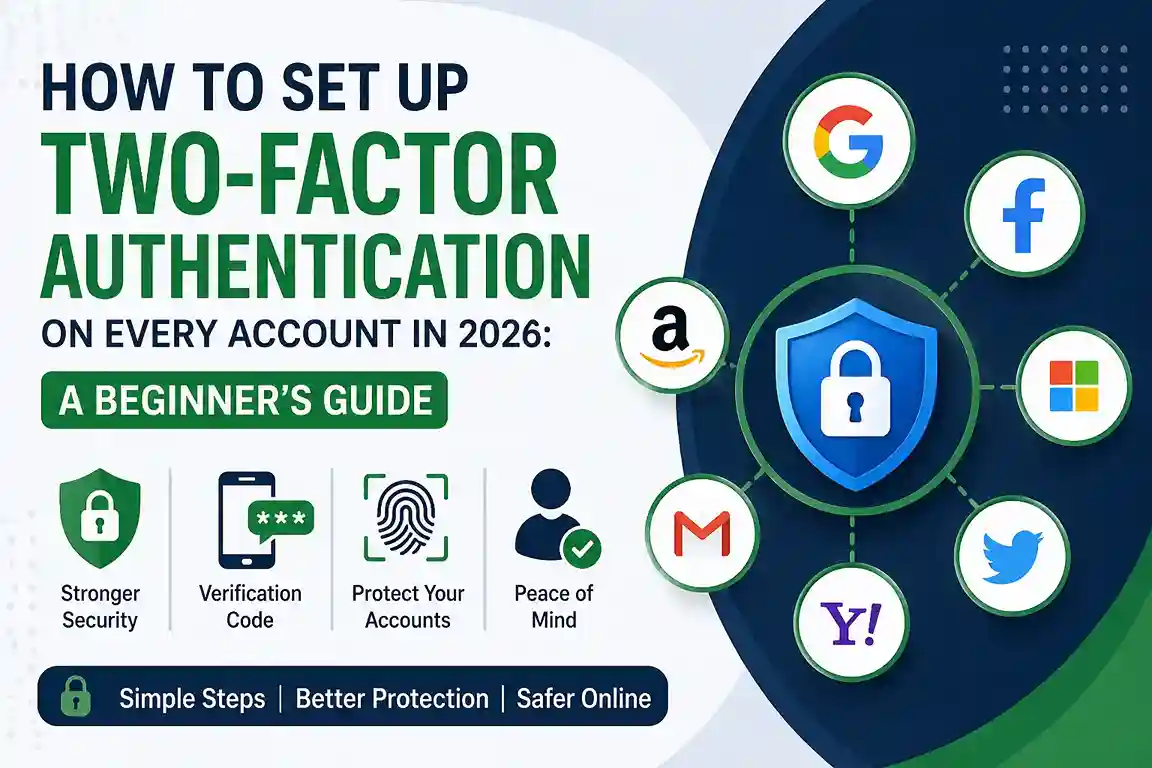
Set up two-factor authentication is one of the simplest ways to protect your accounts in 2026. Passwords alone are no longer enough. They can be guessed, reused, stolen in a breach, or phished from a fake login page. Two-factor authentication, often called 2FA or multi-factor authentication, adds another step so that a stolen password is not enough to get inside your account.
The FTC says two-factor authentication is the best way to protect your accounts, and CISA explains that multifactor authentication requires a second method of verifying identity, making unauthorized access much harder. Google also recommends turning on 2-Step Verification and using its Security Checkup to review protection settings. FTC guide to two-factor authentication, CISA multifactor authentication overview, and Google Security Checkup.
This guide is written for beginners who want a practical setup process they can actually follow. It covers the main account types most people use every day, explains the different 2FA methods, gives real-life examples, and shows how this topic fits the practical safety content already published on latestnewss.com.
Quick answer: Turn on two-factor authentication for your email first, then your social accounts, banking, shopping, work, and cloud storage. Use an authenticator app or a security key when possible, and save backup codes safely.
Why two-factor authentication matters
Think about how many accounts are tied to your identity: email, social media, banking, shopping, cloud storage, work tools, travel accounts, and streaming services. If one of those accounts is compromised, the damage can spread quickly. Email is especially important because it is often the recovery path for every other account.
A password can be exposed through a breach or tricked out of you through phishing. Two-factor authentication helps block that risk by requiring a second proof of identity, such as a code, notification, or security key. CISA says MFA is a layered approach to securing data and applications, while Google’s authentication guidance highlights stronger sign-in options such as passkeys and 2-Step Verification. Google authentication tools.
In everyday life, this can stop common attacks. If someone learns your password from a fake delivery message, they still should not be able to sign in if your account asks for an authenticator code or a hardware key. That extra step is what makes 2FA so valuable.
The main types of two-factor authentication
Before you start turning on 2FA everywhere, it helps to understand the methods you may see. Some accounts use text message codes, others use authenticator apps, and stronger services may let you use security keys or built-in passkeys. The best option depends on the account and what it supports.
Text message codes
These are easy to use, but they are not always the strongest choice. They can still be useful as a backup option, but app-based or key-based methods are usually better.
Authenticator apps
Apps like Google Authenticator generate a changing code on your phone. Google’s setup instructions show how to add an authenticator to a Google Account. This method is a strong and common choice for beginners.
Push prompts
Some services send a yes/no approval to your phone. This is convenient, but you should only approve a login if you actually started it.
Security keys
A hardware security key is a physical device you tap or insert when you sign in. It is one of the strongest options for high-value accounts.
Passkeys
Passkeys use your device’s built-in security features, such as biometrics or device lock, to replace or reduce password use. Many services are moving in this direction.
How to set up two-factor authentication on every important account
1. Start with your primary email account
Your email account is the gateway to password resets, login alerts, and account recovery. If email is weak, everything else becomes easier to break into. Turn on 2FA here first, then save backup codes in a secure place. Google’s 2-Step Verification setup is a straightforward example of how the process works.
Helpful source: Google 2-Step Verification
2. Protect your social media accounts
Social accounts often hold your public identity, private messages, and linked logins. If a scammer takes over your account, they can use it to message friends, spread spam, or gather more personal details. Turn on 2FA in the app settings and prefer an authenticator app if available.
3. Secure banking and payment apps
Banking, UPI, wallet, and payment apps should have the strongest protection available. Use every security option the provider offers, including app lock, biometric sign-in, and transaction alerts. If your bank offers hardware-key support or app-based verification, enable it.
4. Add 2FA to shopping and delivery accounts
E-commerce accounts may not look as sensitive, but they often store saved cards, addresses, and order histories. That information can be abused for fraud or impersonation. Enabling 2FA here adds a valuable barrier.
5. Turn it on for cloud storage and file-sharing services
Cloud accounts often contain documents, photos, tax files, resumes, and personal backups. That makes them high-value targets. Secure them carefully so a single stolen password does not expose your entire file library.
6. Protect work, freelance, and collaboration tools
If you use email, project management apps, or storage tools for work, 2FA should be mandatory. A work account compromise can affect clients, coworkers, and personal income. This is especially important for freelancers and remote workers.
7. Secure travel, ride, and communication apps
Ride-hailing apps, airline accounts, messaging tools, and hotel apps may seem low risk, but they often store location history, payment details, and personal contact information. Turn on 2FA anywhere the service allows it.
Real-world examples that show why 2FA matters
Imagine a hacker gets your password from a fake login page. Without 2FA, they may enter your email account, reset your social media password, and then use that account to scam your friends. With 2FA turned on, the password alone is not enough, so the attack usually stops at the first gate.
Another common case involves reused passwords. If one shopping site is breached, that same password may be tried on your email, cloud storage, or work tools. Two-factor authentication can break that chain. Even when a password is exposed, the second step still protects the account.
A third example is account recovery. People sometimes lose access because they set up 2FA but never saved backup codes. That is why a good setup always includes a recovery plan. The best security is the kind you can still use when you need it.
Do not forget backup codes and recovery options
A beginner mistake is turning on 2FA and then forgetting how to get back in. Good security must be usable. Save backup codes in a password manager or another secure place. Review your recovery email address and phone number. If the service offers trusted devices, recovery contacts, or backup methods, set them up while you still have access.
Google’s Security Checkup is useful because it helps you review recovery options, sign-in methods, and connected devices in one place. Google Security Checkup.
How this fits latestnewss.com
This article fits naturally with the site’s existing practical-safety and how-to cluster. For example, the page How to Keep Your Personal Data Safe Online in 2026: A Beginner-Friendly Guide covers the broader privacy habits that support 2FA, while How to Protect your Phone From Scam Calls, Fake OTPs, and Online Fraud in 2026 helps readers understand the scam side of account security.
It also pairs well with How to Stay Safe on Public Wi-Fi in 2026: A Simple Cybersecurity Guide because account protection and network safety often overlap.
If you want to connect the article to trust-building editorial content, you can also reference How We Verify News Before Publishing: Fact-Checking Process for Readers as a reminder that checking identity and checking information are both part of the same safety mindset.
Best practices for using two-factor authentication well
Once 2FA is turned on, use it consistently. Do not approve sign-in prompts you did not request. Do not share verification codes with anyone, even if they claim to be support staff. Keep your phone updated, because authenticator apps and notification prompts are only as secure as the device they run on.
If you are given a choice, prefer an authenticator app or security key over SMS codes for high-value accounts. CISA and Google both emphasize stronger authentication methods, and Google’s authentication guidance points users toward secure sign-in options that reduce password dependence. CISA MFA guidance.
Why this article works for AdSense and Google Discover
This article is a good AdSense fit because it is original, practical, and evergreen. It helps real users solve a real problem and can remain useful long after publication. Google’s guidance on helpful content and Search Essentials favors this kind of people-first article, while Google’s authentication resources also support the topic with official instructions and security advice. Google Search Essentials and Google Authenticator setup help.
For Google Discover, the article works because the title is clear, the topic is widely useful, and the structure is easy to scan on mobile. Strong headings, short paragraphs, real examples, and FAQ content improve readability and give the page a better chance to feel useful to a broad audience.
Frequently asked questions
What is the easiest way to start with 2FA?
Start with your email account first, because it is usually the recovery point for everything else. Then move to your social, banking, shopping, and cloud accounts.
Is an authenticator app safer than SMS?
In most cases, yes. Authenticator apps are usually stronger than SMS because they are less exposed to phone-number-based attacks and message interception.
What should I do if I lose my phone after setting up 2FA?
Use backup codes, recovery email, trusted devices, or support recovery steps from the service. That is why saving backup access is essential before you need it.
Should I turn on 2FA for low-risk accounts too?
If the service offers it, yes. Even less important accounts can be used as entry points for scams or for collecting more of your personal data.
Can I use the same 2FA app for all accounts?
Usually yes. Many authenticator apps can store codes for multiple services, which makes them easier to manage than people expect.
What is the biggest mistake people make with 2FA?
They turn it on and then ignore backup codes and recovery settings. Security should protect you and also let you recover access safely.
Conclusion
Two-factor authentication is one of the fastest ways to make your online life safer. It does not replace strong passwords, careful browsing, or regular updates, but it adds a powerful extra barrier that stops many common account takeovers. If you begin with email and then work through the rest of your accounts one by one, the task becomes manageable.

Shiva S writes about AI, cybersecurity, online safety, Google Discover, and digital trends. His focus is creating practical, easy-to-understand guides that help readers stay informed and safer online.